
How to Send Large Video Files: Email, iPhone & Android
 Ridwan Said
10 min read
Ridwan Said
10 min read

On this page
- Why large videos won't just send
- How to send a large video from an iPhone
- How to send a large video from an Android phone
- How to send a large video file by email
- Comparing your options
- What happens after the video actually arrives
- A better way to send and review video files
- Which method should you actually use
- FAQ
The fastest way to send a large video is usually AirDrop (if the recipient is nearby with an Apple device) or a cloud-storage or file-transfer link (if they're not). Email is the slowest and least reliable option for anything over roughly 25 MB, and iMessage will silently recompress a long video rather than fail outright, which is its own kind of problem. Below is every method that actually works, by device, plus what to do once the file has to leave your phone entirely.
Most guides to this stop at "here's how to get the file there." This one also covers the part that comes right after: what happens when the person on the other end needs to actually watch the video and tell you something about it.
Why large videos won't just send
A 90-second 4K clip can easily run 400–800 MB. A few minutes of 1080p footage from a phone lands in the same range. None of the everyday ways people move files around were built with that in mind.
- Email — Gmail caps attachments at 25 MB, and most other providers sit close to that same ceiling. A short, low-resolution clip might sneak under it. Almost nothing else will.
- iMessage — doesn't reject an oversized video outright. It quietly compresses it instead, which is why a video someone sent you over iMessage often looks noticeably worse than the one still sitting in their camera roll.
- AirDrop — has no fixed file-size cap the way email does. It's constrained by something else entirely: both devices need Wi-Fi and Bluetooth on, and the recipient needs to be within roughly 30 feet, physically.
- MMS / carrier messaging — the tightest limit of all, often capping out well under 1 MB depending on carrier, which is why a text-message video almost always looks compressed into mush.
None of this is a bug. Email, iMessage, and MMS were built to move small pieces of text and the occasional photo, not multi-hundred-megabyte video files. The workaround, in every case, is the same idea: get the video somewhere it can be downloaded from, and send a link instead of the file itself. A file-transfer service like Affily is built for exactly that — upload the video once, and none of the limits above apply to the link you send instead.
How to send a large video from an iPhone
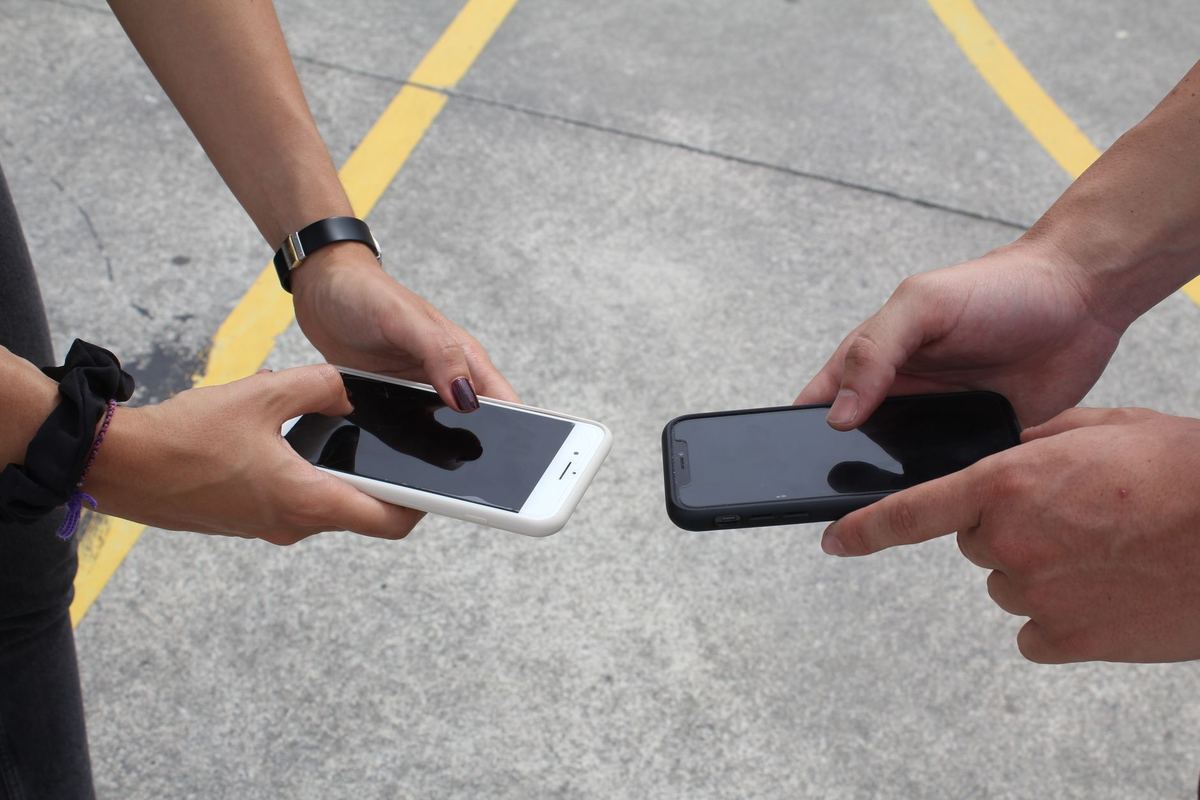
- AirDrop, if the recipient is nearby. Open the video in Photos, tap Share, select AirDrop, and pick their device. It transfers at full quality over Wi-Fi and Bluetooth, with no compression and no size limit worth worrying about — the only requirement is that both people are in the same room or close to it.
- iCloud Link, for anyone else. With iCloud Photos turned on, sharing a video from the Photos app offers an iCloud Link option instead of the file itself. The recipient gets a URL, and it works over Messages, Mail, or anywhere else you can paste a link. Links expire after 30 days.
- Mail Drop, if you'd rather stay in Mail. Compose a message, attach the video, and Mail automatically offers Mail Drop for anything too large for a normal attachment — up to 5 GB. The recipient gets a download link instead of an inline attachment.
- A cloud-storage or file-transfer link, for full control over expiry and quality. Upload the video to a service built for this and send the link — the option most professionals delivering finished work actually reach for, covered below.
The one to avoid: texting the video directly through Messages to a non-iPhone contact, or letting a long clip get sent as MMS. Either one recompresses hard enough that fine detail and motion clarity both take a visible hit.
How to send a large video from an Android phone
- Google Photos, if the video's already backed up there. Open it, tap Share, and Google Photos generates a shareable link rather than sending the raw file — the most common route on Android specifically because most Android videos are backed up here by default.
- Nearby Share, Android's rough equivalent of AirDrop, for a recipient who's physically close and also on Android. Works over Wi-Fi Direct and Bluetooth, at full quality, with the same proximity requirement AirDrop has.
- Bluetooth, as a fallback when Nearby Share isn't available on the recipient's device — slower, but it works between most phones regardless of brand.
- A cloud-storage or file-transfer link, same as the iPhone option above, and the one that works identically regardless of what device is on the other end.
Android doesn't have a single dominant "share a large file" feature the way Apple's ecosystem leans on AirDrop and iCloud — which is part of why a cloud link ends up being the most consistent answer across both platforms.
How to send a large video file by email
- Compress it first. Cutting resolution or bitrate can bring a video under 25 MB, but for anything longer than a few seconds, the quality loss is usually obvious and often not worth it.
- Use your provider's built-in large-file option. Gmail automatically swaps an oversized attachment for a Google Drive link — see our guide to sending large files with Google Drive for the storage limits and sharing settings that trip people up. Outlook and iCloud Mail have similar built-in fallbacks. The email still "contains" the video functionally, even though it's technically a link.
- Upload it somewhere and paste the link in yourself. The most reliable option, and the one that works the same way no matter which email provider either side is using — free file transfer tools exist specifically for this.
Email was never actually built to move video. Every one of these methods is a workaround for that, and the workaround is the same workaround every time: turn the file into a link.
Comparing your options
Rough guide to trade-offs. "Effort" means how many decisions and steps it takes, not just clicks.
- AirDrop / Nearby Share — no size limit, zero quality loss, but only works if you're physically near the recipient right now.
- iMessage / MMS — no setup at all, but heavy, unpredictable compression on anything beyond a few seconds.
- Email attachment — familiar, but hits a wall around 25 MB for almost every video that isn't very short or very low-resolution.
- iCloud Link / Mail Drop — no real size limit up to several GB, works for any recipient, but the link expires (30 days on iCloud) and isn't built for anyone to leave feedback on what they're watching.
- Cloud storage or file-transfer link — the most consistent option across every device and platform, full quality preserved, but a plain link still only solves "how do they get the file," not what happens once they've watched it.
That last gap is the one worth stopping on, because it's the part every guide to sending large video files quietly skips.
What happens after the video actually arrives

Sending a video is rarely the actual finish line. A videographer delivering a wedding edit needs the couple to watch it and say yes. A freelancer sending a client the first cut of a product video needs notes back on what to change. Even sending a long clip to a family member usually comes with an implicit "let me know what you think."
Every method above solves "how do I get this video from my device to yours" and stops there. None of them solve what happens next: the recipient downloads it, watches it once, and then tries to describe a specific moment in a text message. "Around the middle, when the camera pans right, can you trim that part" means three rewatches before anyone agrees on which second is actually being discussed.
This is the same category of problem as a WeTransfer link that finally gets clicked the exact day it expires — the file itself was never the hard part. It's everything that has to happen around it once it's actually been received.
A better way to send and review video files

A message once landed in Affily's founder's inbox at night, from someone he'd never spoken to before: "The website is sleeker than WeTransfer. I uploaded 102 large files in no time." Nobody asked for that message. It arrived because sending large files somewhere that actually works, at full quality, is worth noticing when it happens.
Affily starts as exactly that: send a video, get a link, no size limit worth worrying about on paid plans and 10 GB a month free. But the link opens onto a page where the recipient can preview the video and leave a comment pinned to the exact timestamp, instead of "around the middle, when the camera pans right." The creator sees precisely which second the note is about, without a single rewatch.
That difference matters most for anyone who sends video for a living rather than once in a while. A tool built only to move a file from one person to another has nothing to say about what happens after — the feedback, the revision, the eventual sign-off, the next project that reuses the same footage. WeTransfer is good at the send part. It was never built for what happens after, and that's a reasonable trade-off for a one-off send to a friend. It's a worse one for a videographer who delivers client work every week and needs the same recipient to review, comment, and approve, not just download — with every comment and approval versioned through revision history, so an approval always stays tied to the exact cut it was actually about.
For the fuller version of this workflow, see our guide to video content management, or the dedicated breakdown of what a video content management system actually does. And for the stage right after feedback, where a revision turns into a recorded decision, see content approval workflows.
Send the video, then skip the rewatch
Affily pairs full-quality video transfer with timestamped comments, so feedback lands on the exact second it's about.
It's also worth being direct about the trade-off on the free end of things: Affily's Free and Starter plans expire links after 3 days, the same category of limit as any other free file-transfer tool. That's a fine deal for a one-off send. It's the wrong default for a video that'll need revisiting weeks later, which is what Pro and Creator Teams remove entirely with no link expiry.
Which method should you actually use
- Sending to someone standing next to you — AirDrop or Nearby Share. Nothing beats it for a one-time, in-person handoff.
- Sending a quick, casual video to a friend or family member — iCloud Link, Google Photos, or Mail Drop. Fast, no account needed on either end, good enough quality for something that isn't work.
- Delivering finished work to a client, once — a cloud-storage or file-transfer link. Full quality, works regardless of device, and a branded link looks more professional than a raw Google Drive URL.
- Delivering client work you'll need feedback and approval on — a file-transfer tool built around review, not just download, so the notes that come back are pinned to the video itself instead of scattered across email and text.
- Sending video for a recurring campaign, project, or client relationship — the same as above, but on a plan without a link that quietly expires before the third round of revisions is even done.
The honest version of this decision: match the tool to how many times this video is actually going to get touched after you hit send. Once, and almost anything above works fine. More than once, and the tool that only handles the sending part starts costing more time than it saves. And if the upload itself feels slow no matter which tool you pick, see our breakdown of what actually makes a file transfer fast before blaming the software.
Frequently asked questions
What's the fastest way to send a large video file?
AirDrop (iPhone) or Nearby Share (Android) if the recipient is physically nearby — no upload time, full quality, no size limit worth worrying about. For anyone not in the same room, a cloud-storage or file-transfer link is the fastest reliable option.
Why won't my video send through iMessage or email?
Email providers cap attachments around 25 MB, and most videos over a few seconds exceed that easily. iMessage doesn't reject an oversized video outright — it compresses it instead, which is why a video sent that way often looks noticeably worse than the original.
How do I send a large video from an iPhone without losing quality?
AirDrop to a nearby device, or a cloud-storage/file-transfer link to anyone else. Both preserve full quality. iMessage and MMS are the two methods that visibly degrade video quality through compression.
Is there a size limit for AirDrop?
Not a fixed one the way email has 25 MB. AirDrop is limited by proximity (both devices need to be within roughly 30 feet with Wi-Fi and Bluetooth on) rather than file size.
What's the best way to send a large video file for free?
A free file-transfer service is usually the most reliable option — full quality, works across any device, no compression. Affily's free plan covers 10 GB of transfers a month with no credit card required; links on the free plan expire after 3 days.
How can I send a large video and get feedback on it in one place?
Most transfer tools only handle getting the file there. Affily adds timestamped video comments on the same page the recipient uses to preview the video, so notes land on the exact second they're about instead of arriving separately by text or email.
Bring your creator content into one workspace
Affily keeps every creator, file, comment, and approval in one place, so your next campaign doesn't start with another shared drive.